In this article
Messenger is one of those apps you notice only when it stops behaving normally. A message arrives late, an update stalls, or the app is missing on a new Huawei phone. The Huawei Community guide keeps the fix simple: use AppGallery first, then check phone settings only when needed.
Update Messenger from AppGallery
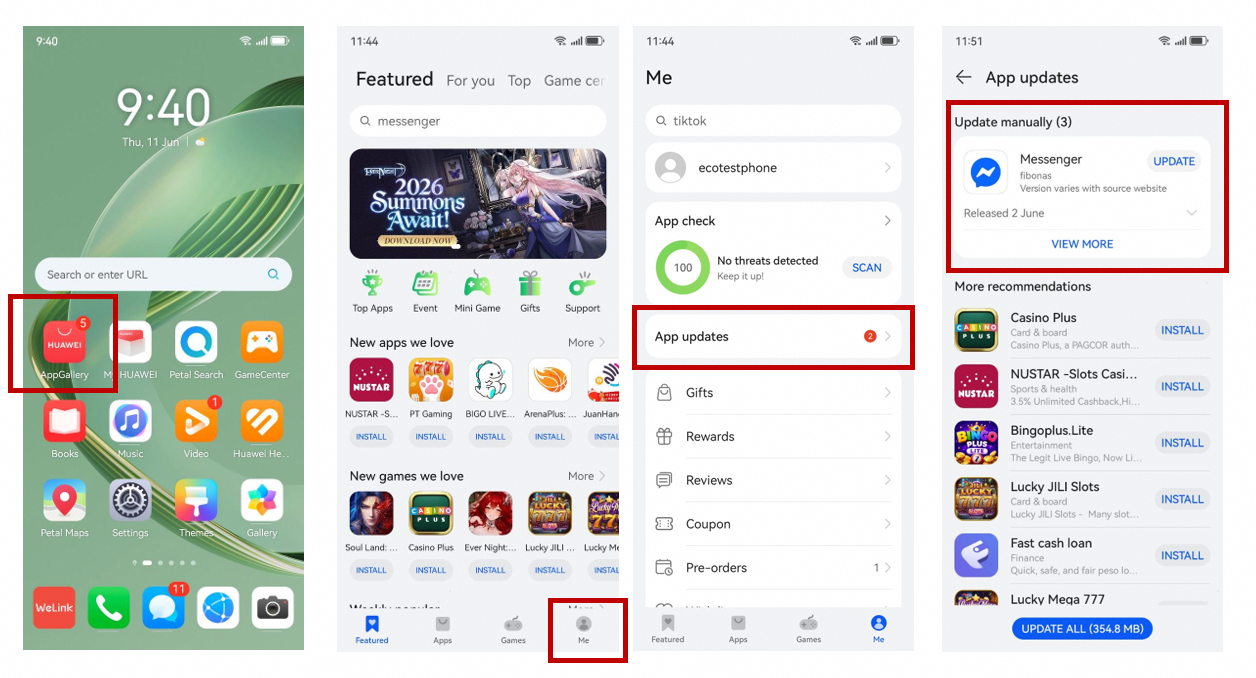
Open HUAWEI AppGallery, tap Me in the bottom-right corner, and choose App updates. Find Messenger in the list and tap Update. That is the main update route shown in the source.
If you are setting up Huawei Messenger, start here rather than looking for another store. Keeping the app and its updates in the same place makes the process easier to follow and gives you one clear version to maintain.
If the update will not finish
The Community post points to the download source as the first thing to check when Messenger will not update or appears stuck. Make sure the installed copy came from AppGallery. If it did not, or if the update still will not complete, reinstall Messenger from AppGallery to get the latest version offered there.
This is a cleaner fix than keeping several copies from different sources. Remove the uncertainty first, then see whether Messenger opens and updates normally.
Installing Messenger for the first time
If the app is not installed yet, the route is short: open AppGallery, search for Messenger, and tap Install. The original guide presents this as the normal way to get Messenger on a Huawei phone without relying on Google Play Store.
Once installation is complete, open the app and sign in. There is no need to change other phone settings unless you notice a specific problem.
GBox is the alternative mentioned in the guide
The source also lists GBox as another way to install or update apps. It is not presented as the first stop. AppGallery remains the first store to check, while GBox is the fallback when the app you need is not available there.
That order is useful beyond Messenger as well: check AppGallery first, and move to GBox only when the app cannot be found through the normal Huawei store route.
Keep the phone software current
If Messenger is installed correctly but something still feels wrong, check the Huawei system software. Go to Settings > System & updates > Software update. The phone will check whether a newer version is available; if one appears, follow the update prompt.
This step is separate from updating Messenger. It simply makes sure the device itself is not waiting for a system update while you are troubleshooting the app.
Check notifications when messages seem late
A Messenger app can be fully updated and still feel broken if alerts are turned off. The Community guide gives a direct path: Settings > Notifications & status bar > search for Messenger > Allow notifications.
If you have been opening the app manually just to see whether someone wrote to you, this setting is worth checking before reinstalling anything again.
Keep the routine easy to remember
The page linked through Huawei Messenger is useful because the steps are practical: update from AppGallery, reinstall from AppGallery if the source or version is wrong, use GBox only as the alternative described in the guide, keep the phone software current, and confirm notification permission when alerts are missing.
That is enough for most of the problems covered in the original post. Keep the setup simple and change only the part that is actually causing trouble.